 SearchChamp
Integrations
Connect Google Search Console
Link Google Search Console so SearchChamp works with your real search data.
Connecting Google Search Console gives SearchChamp your real impressions, clicks, and ranking positions — the data that powers your dashboard, Audits, and Opportunities.
What you'll need
- A verified site and a Google account with access to the site's Search Console property.
Steps
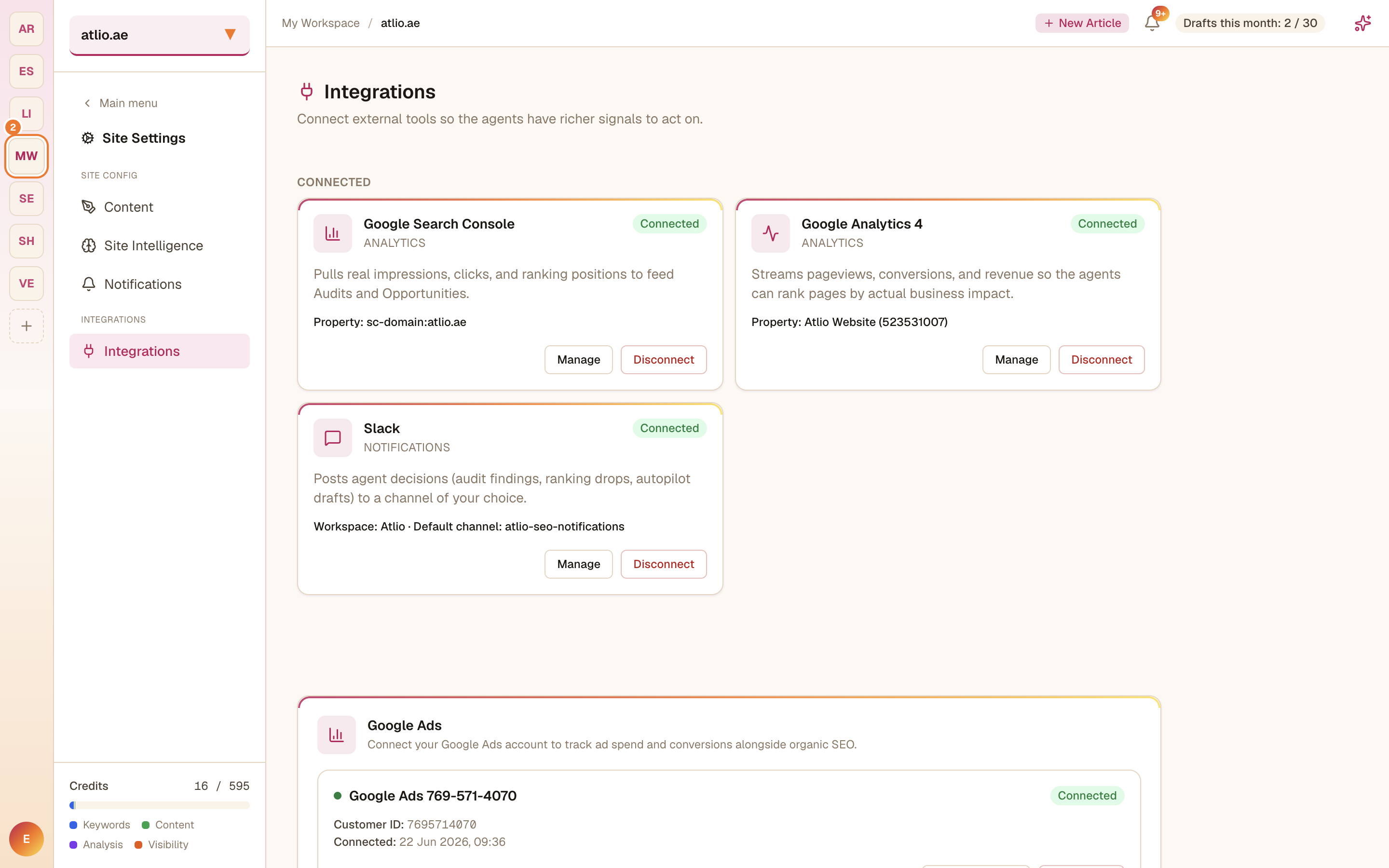
Authorize and pick your property
Connect and sign in with Google, then select the Search Console property that matches this site (for a domain property it looks like sc-domain:yourdomain). Once connected, the integration shows the property it's pulling from, with Manage and Disconnect controls.
Confirm it's working
Open Google Search Console under Analyze in the sidebar — you should see clicks, impressions, CTR, and position. Search Console runs about a day behind, so give it a little time after connecting.