 SearchChamp
Connect Search Console & Analytics
Connect Google Search Console and GA4 so your dashboard, audits, and opportunities run on your real data.
SearchChamp is far more useful once it can see your real performance data. Connecting Google Search Console and Google Analytics 4 lets the agents rank your pages by actual impressions, clicks, and business impact — and powers your dashboard, audits, and opportunities.
What you'll need
- A verified site (see Verify your domain).
- A Google account with access to the site's Search Console and GA4 properties.
Steps
Open Integrations
Go to Site Settings → Integrations. Each integration shows what it powers and whether it's connected.
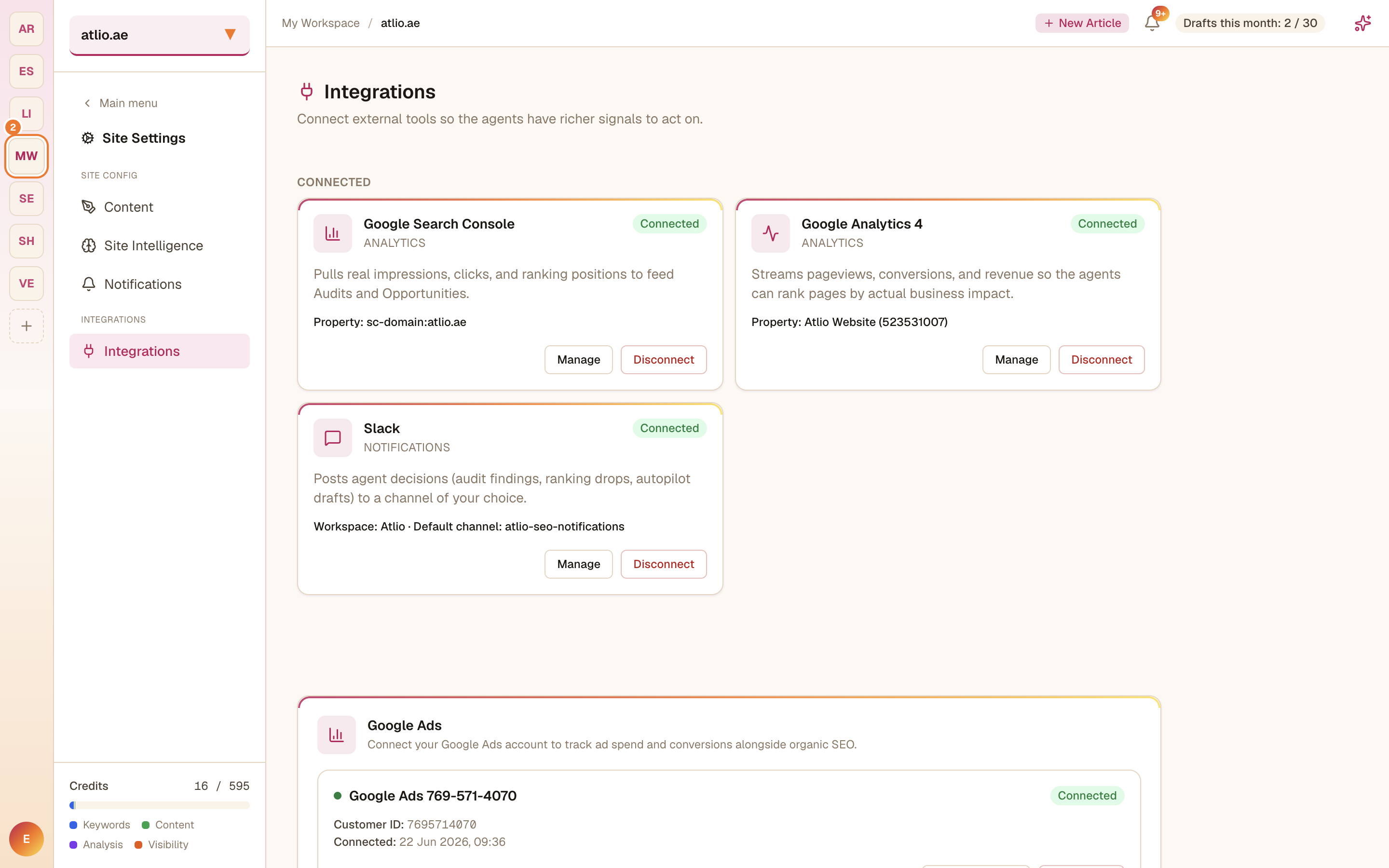
Connect Google Search Console
Connect Google Search Console first — it pulls your real impressions, clicks, and ranking positions, and feeds them into Audits and Opportunities. Authorize with Google and pick the property for this site.
Connect Google Analytics 4
Connect Google Analytics 4 to stream pageviews, conversions, and revenue, so the agents can rank pages by actual business impact. Select the matching GA4 property.
Connect anything else you use
From the same page you can also connect Google Ads, WordPress (to publish), Shopify, Slack, and Email — each adds signals or destinations the agents can use. Connect what's relevant; skip the rest.
Manage connections
Every connected integration has Manage and Disconnect controls, so you can re-authorize or remove a connection whenever you need to.